 Pixelize
How to use Pixelize
A short guide for every tool, from your first photo to Pro.
Getting started
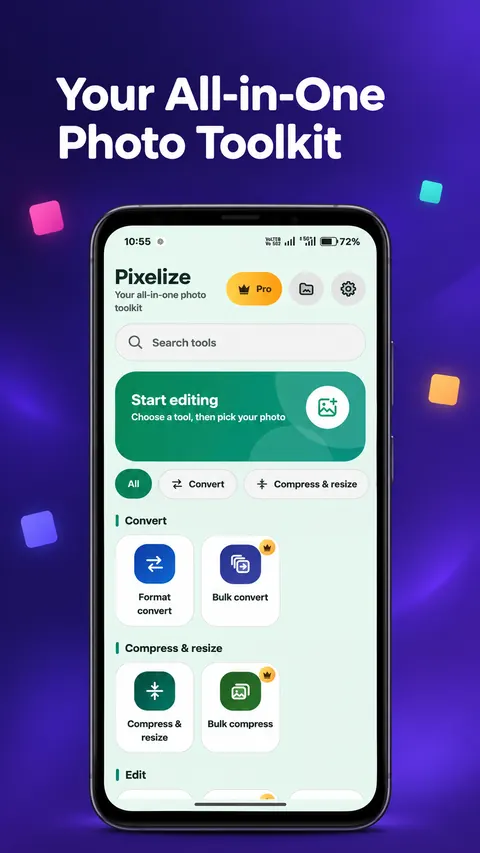
Install Pixelize from Google Play and open it. The Home screen shows:
- A Search tools box.
- Category chips: All, Convert, Compress & resize, Edit, PDF.
- All tools. A small crown marks a Pro tool.
- Top right: Pro, Output files (folder icon) and Settings (gear icon).
Pixelize may ask for photo access (to show your gallery) and, on Android 13 and newer, for notifications (to show bulk progress). Both are optional. See why we ask.
Open your photos
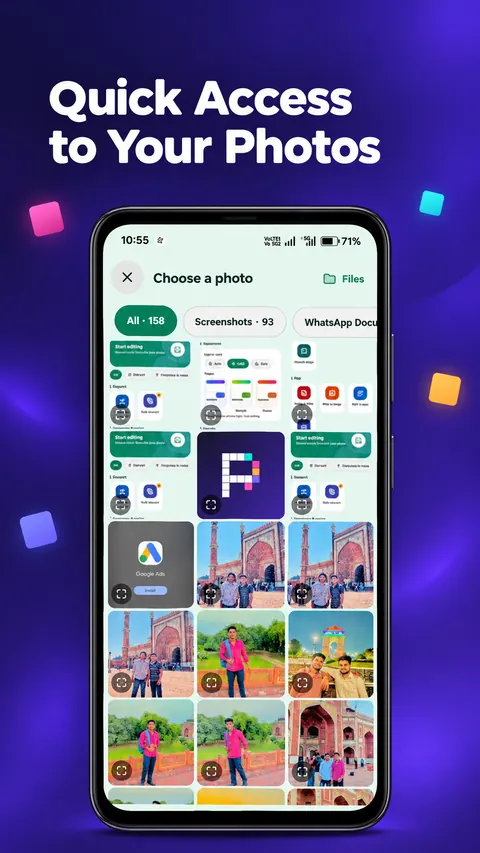
- Tap any tool on Home. Your gallery opens at once, with albums along the top.
- Tap a photo to select it. For many photos, keep tapping. Selected photos get numbers.
- To look closer, tap the full screen button on a photo or long-press it. Swipe to move between photos and pinch or double-tap to zoom.
- Prefer not to give photo access? Tap Files to use the system picker.
Android 14 and newer can share only some photos with an app. Pixelize works with whichever photos you allow.
Convert a photo
- Tap Format convert and pick a photo.
- Choose the new format (JPG, PNG, WEBP, BMP, TIFF, ICO and more) and the quality.
- Check the estimated size, then save. The result is a new file. Your original stays as it was.
iPhone HEIC photos work on Android 9 and newer. HEIC and GIF cannot be written by Android, so Pixelize saves JPG or PNG and tells you.
Compress & resize
- Tap Compress & resize and pick a photo.
- Set the quality and the longest side.
- Compare Original and the new size, see how much space you save, then save.
Remove a background Pro
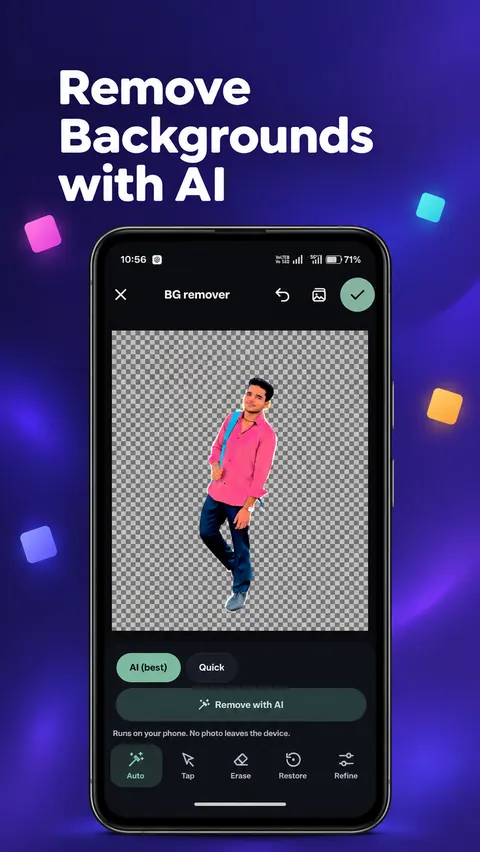
- On Home, open Edit and tap BG remover. Pick a photo.
- Choose AI (best) or Quick.
- The first time you use AI, Pixelize downloads the model (about 90 MB). Use Wi-Fi if you can. If the download stops, tap retry. It resumes where it left off.
- Tap Remove with AI. Then fine-tune with Auto, Tap, Erase, Restore and Refine.
- Tap the check mark to save a transparent PNG or WEBP.
To free the space later: Settings → AI cut-out model.
PDF tools
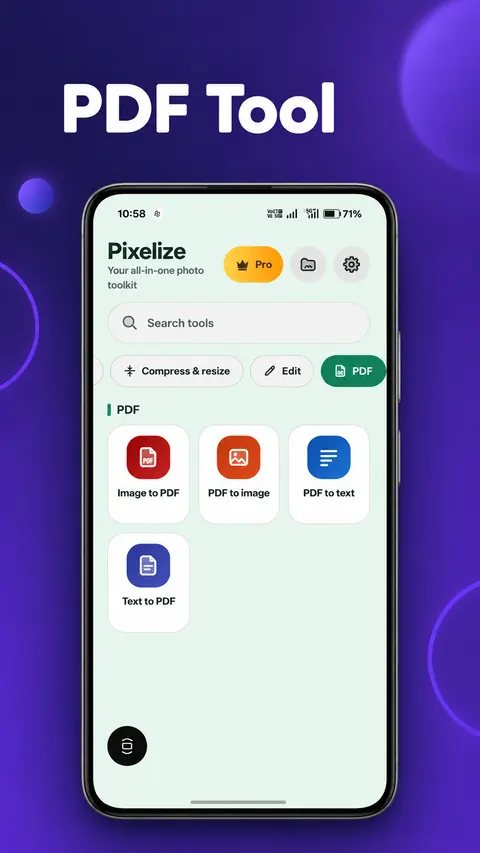
- Image to PDF: pick photos and save one PDF.
- PDF to image: pick a PDF and save pages as pictures.
- PDF to text: pick a PDF and copy the text. Scanned PDFs have no text, so Pixelize says so.
- Text to PDF: write or paste text and save it.
PDFs are saved in Documents/Pixelize.
Bulk convert & Bulk compress Pro
- Open the bulk tool and select many photos.
- Choose the settings and start.
- A progress notification appears. You can leave the app. Tap Cancel in the notification to stop.
If the notification does not show, allow Pixelize notifications in Android settings and make sure battery saver is not restricting the app.
Find your results
- Images are saved in
Pictures/Pixelize. PDFs and text go toDocuments/Pixelize. - Change the folder name in Settings → Defaults → Folder name.
- Tap the Output files (folder) icon on Home to see everything you saved. Filter by Images, PDF or Other. Tap a file to open it. Long-press to select, share or delete.
Pro, free trial and restore
- Tap Pro on Home and choose Get Pro. It is a one-time purchase handled by Google Play. No subscription.
- Try first: tap a Pro tool and watch a short ad to use it free for 1 hour.
- New phone or reinstall: Settings → Pro & privacy → Restore purchases, signed in with the same Google account.
- Refunded purchases are switched off automatically.
Themes & settings
- Appearance: choose a theme (Aurora, Midnight, Sunset, Paper, Mint, Lavender) and Light, Dark or Auto.
- Defaults: default format and quality, save automatically, and folder name.
- Pro & privacy: Restore purchases and Ad privacy settings.
- AI cut-out model: remove the downloaded model.
Troubleshooting
| Problem | What to try |
|---|---|
| Buying Pro says it is not available | Install Pixelize from Google Play (not from a shared APK file), make sure the Play Store is signed in, then try again. |
| A photo will not open | HEIC needs Android 9 or newer. Other formats depend on your phone. Try another photo or convert it first. |
| AI model download fails | Check your connection and free space (about 200 MB), then tap retry. The download resumes. |
| Photos are missing in the gallery | Allow photo access, or tap Files to use the system picker. |
| PDF to text is empty | The PDF is probably scanned (a picture of text). Pixelize has no OCR. |
| Bulk job stops or shows no notification | Allow notifications and remove battery restrictions for Pixelize. |
Still stuck? Report a bug. Tell us your phone model and Android version.
Ready to fix your photos?
Install Pixelize and have your first photo converted, compressed or cut out in under a minute.
Get it onGoogle PlayFound a problem? Tell us about it.